Split
Snap windows to halves, thirds and corners with one shortcut
Monitor
See who is using your CPU, memory and disk, then quit or clean up right there.
All installers (GitHub Releases)
Free · macOS 12 or later · Apple silicon · Intel · 20 languages · View on GitHub
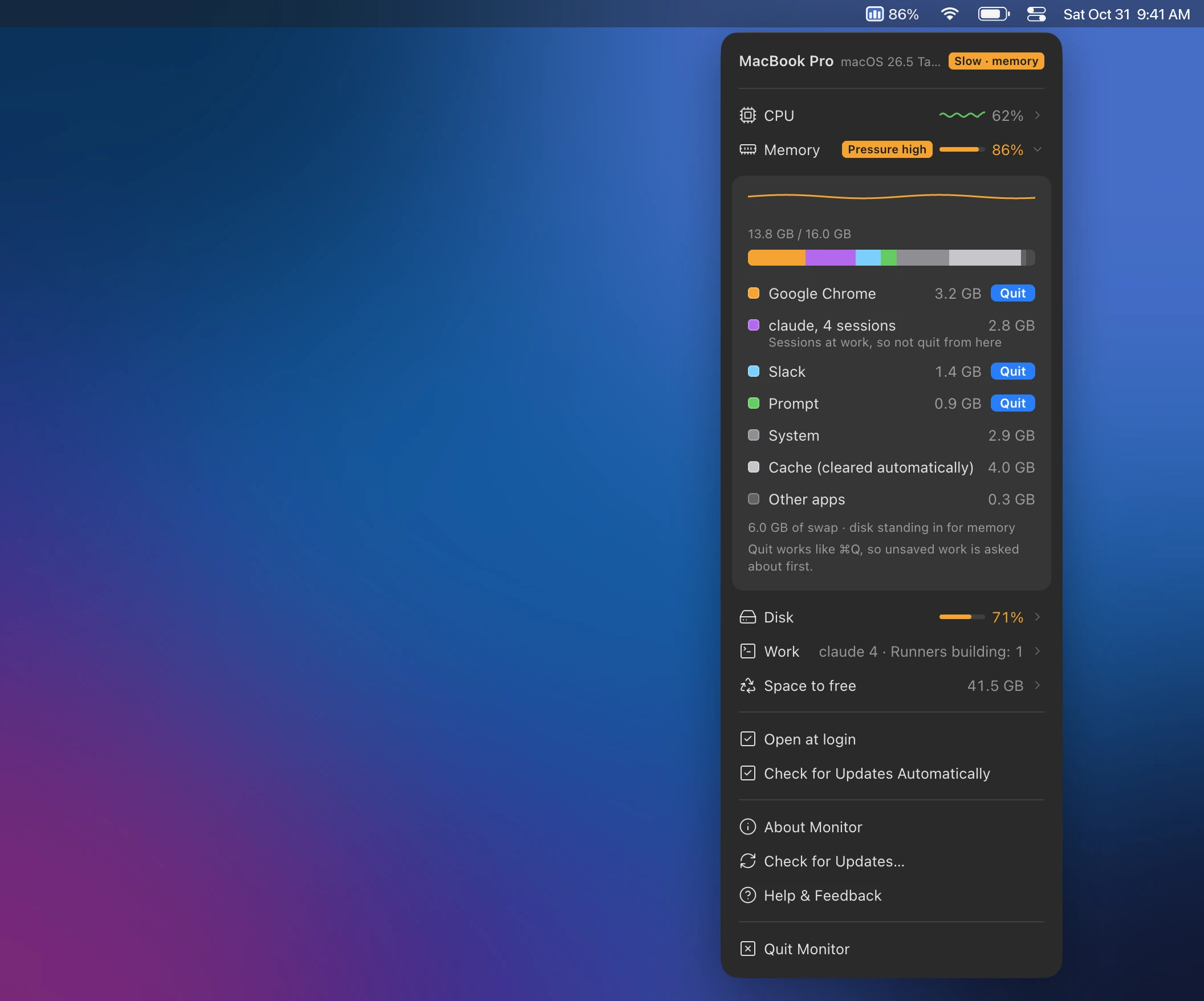
Open the CPU, memory or disk row for a bar split by colour and a list. Memory splits into apps, claude sessions, system and cache; CPU shows each app's share plus what macOS itself uses (memory compression and swap).
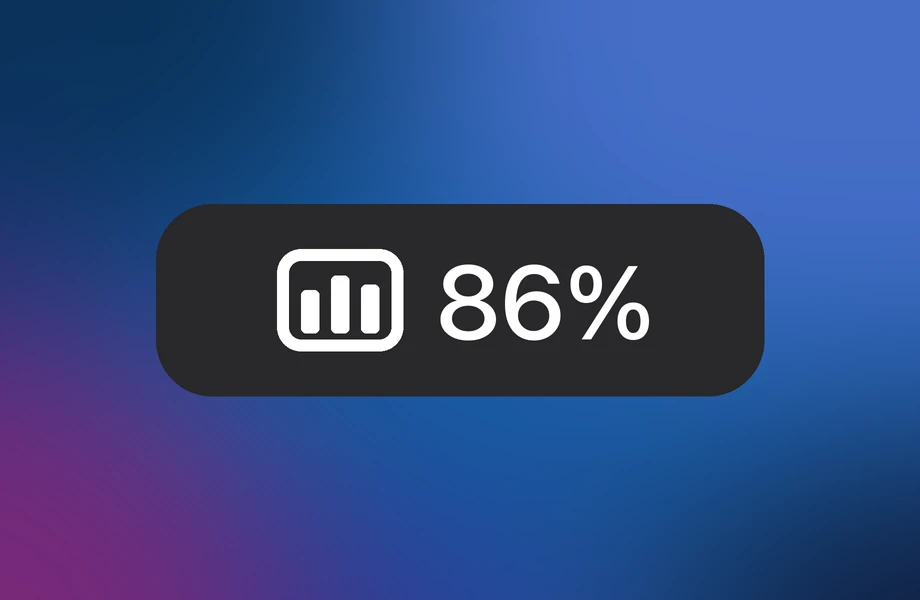 The Monitor icon (three bars) and memory use in the menu bar
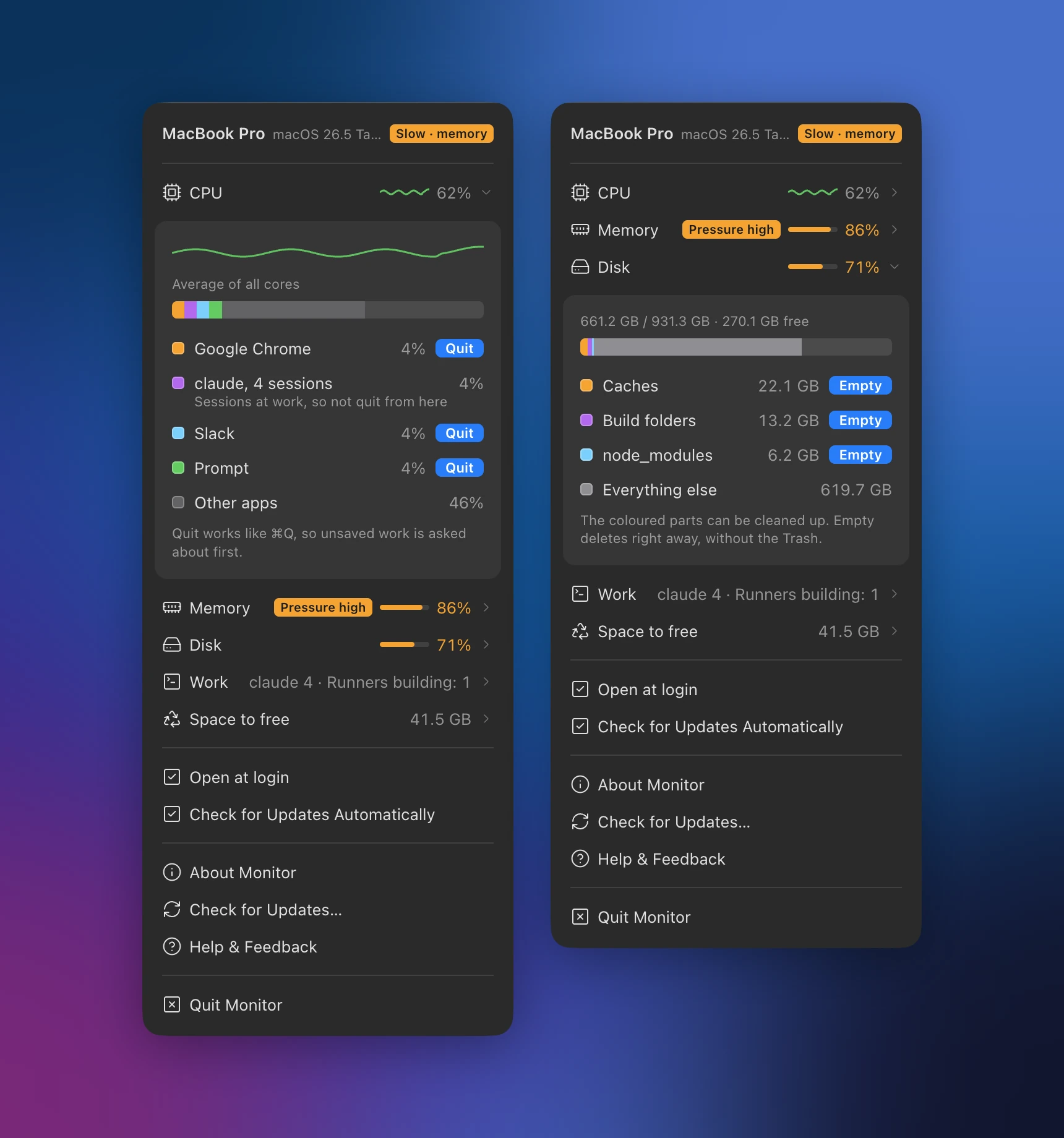
Quit next to an app works like ⌘Q, so an app with unsaved work asks first. Development servers left running are stopped right away. Terminals, editors, claude sessions, build tools and the system get no Quit button, and after you press it the row tells you whether the app quit.
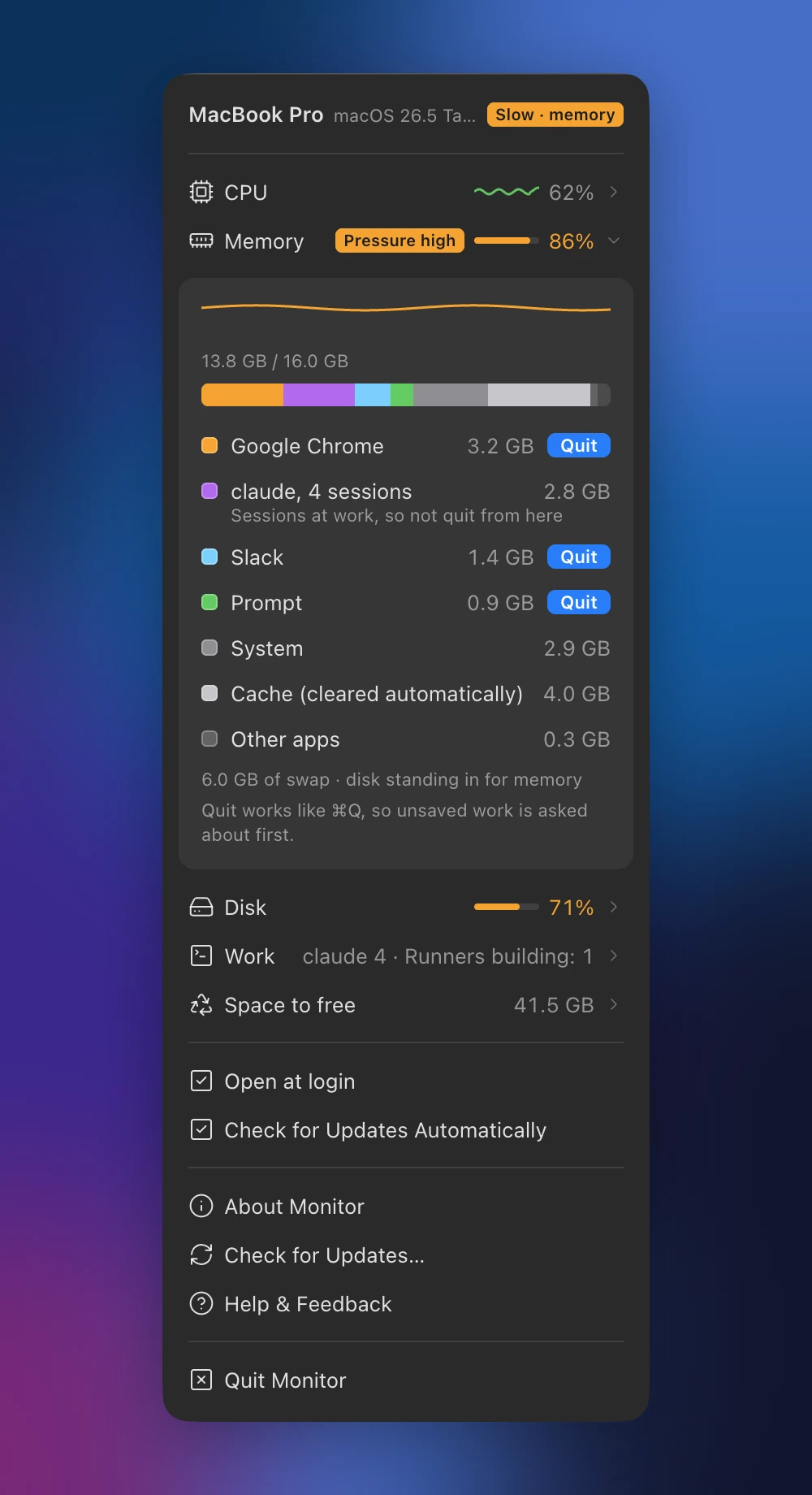
Things that are safe to empty, such as caches, build folders, node_modules, the Trash and unused Docker images, are measured by kind and deleted with Empty. It asks once first, and keeps projects used in the last 7 days so a build in progress never breaks.
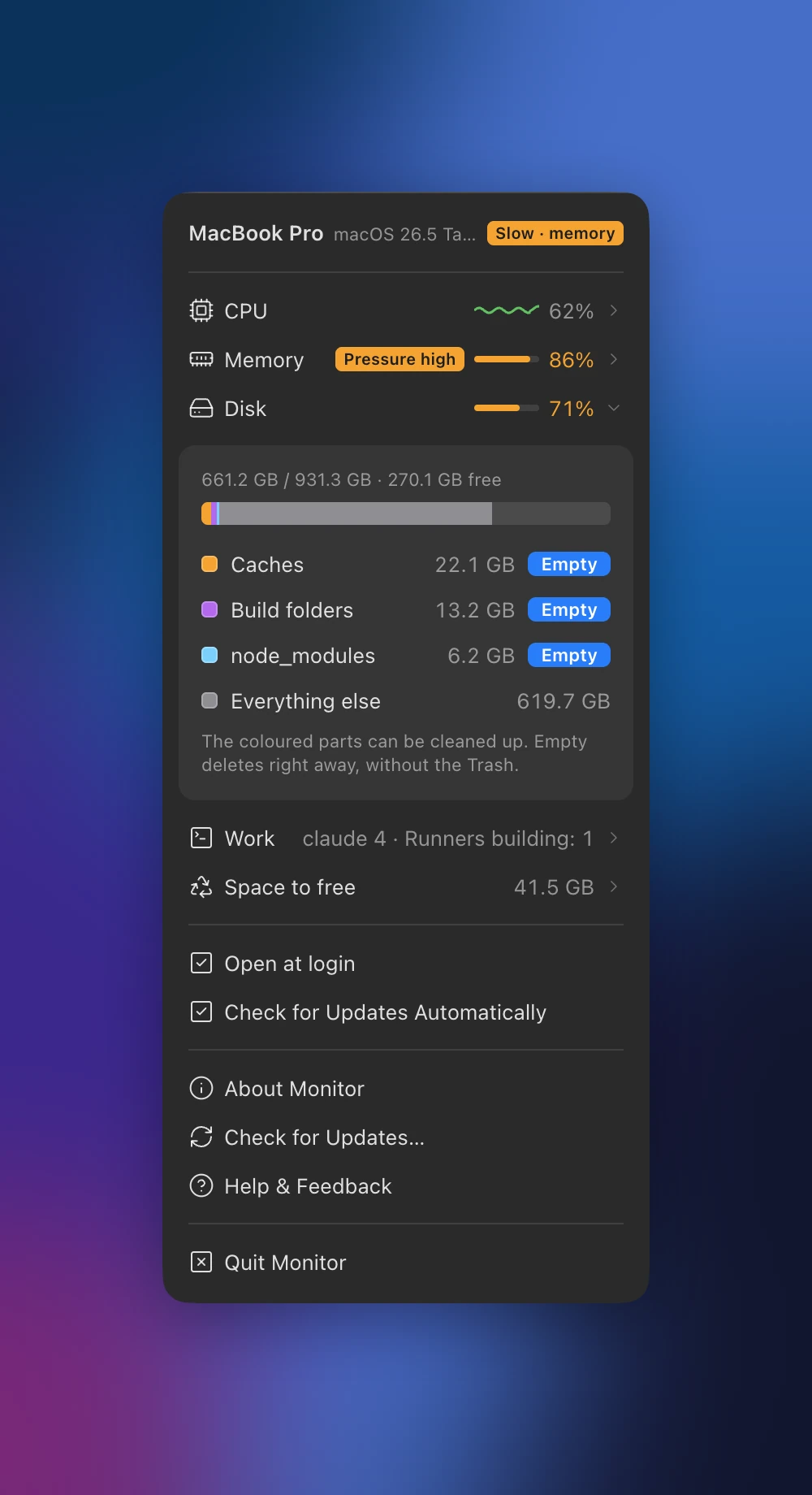
The menu bar icon and the memory number are green when all is well, orange when things are slow and red when memory is very short. When memory has been short for over a minute or the CPU busy for a whole minute, you get one alert a day per reason, and Quit in the alert closes the biggest app right away.
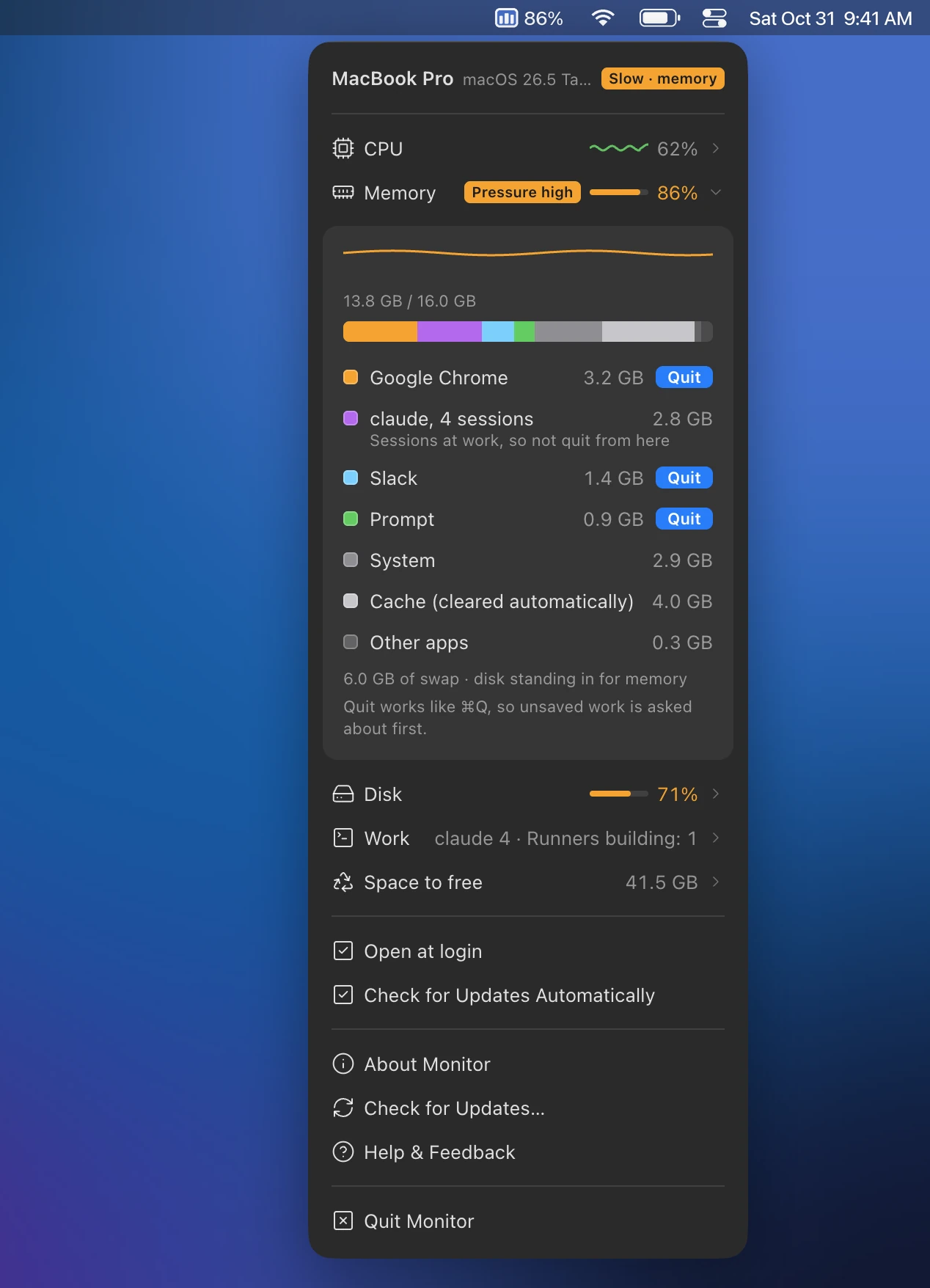
See how many claude sessions and background tasks are running and for how long. If this computer has a GitHub Actions runner, see whether it's building, waiting or turned off, pause it for an hour, and start it again right away with Resume Now.
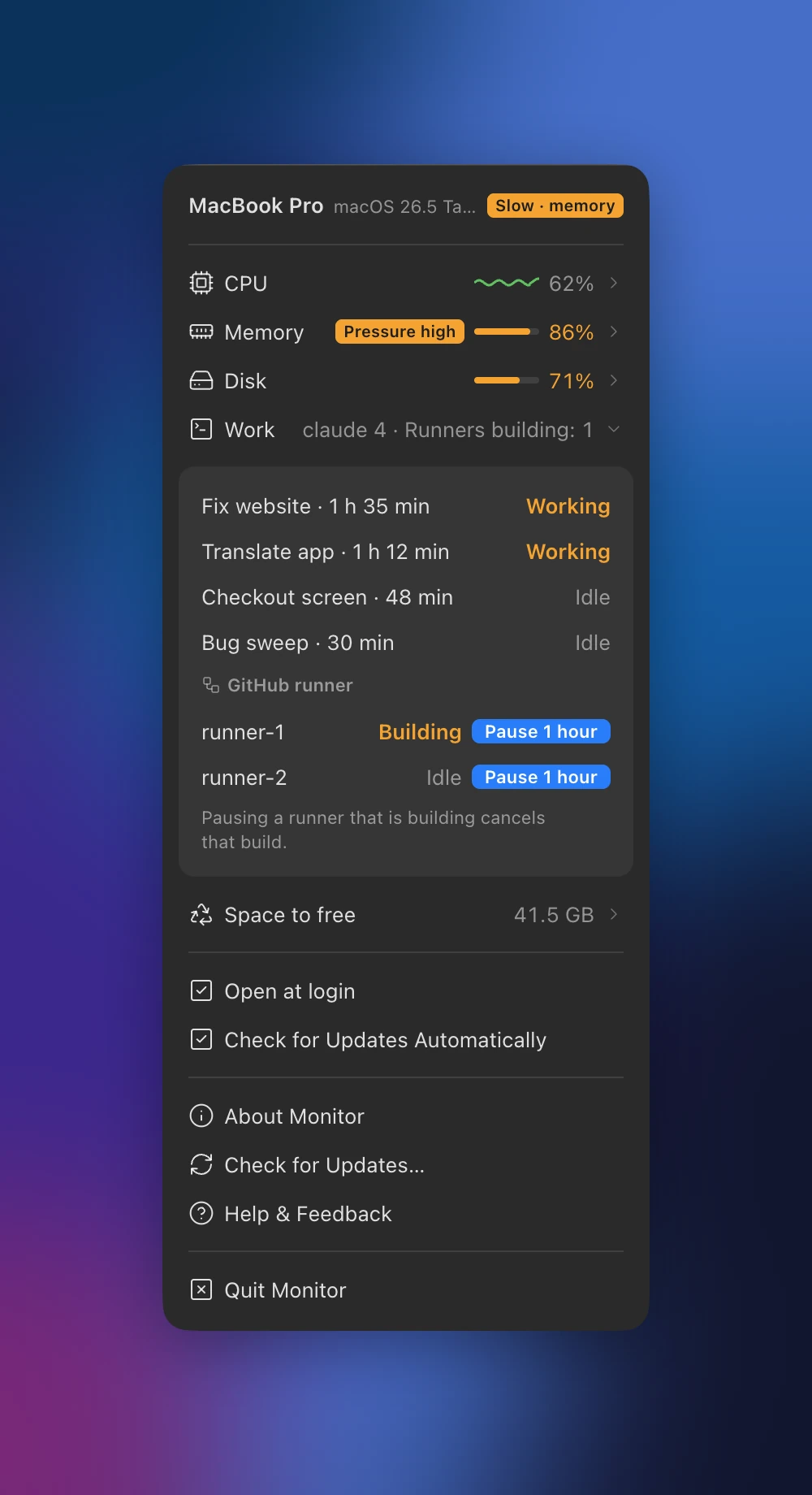
When another computer slows down, the one you're using tells you, and days of usage are kept. $1 a month or $6 a year.
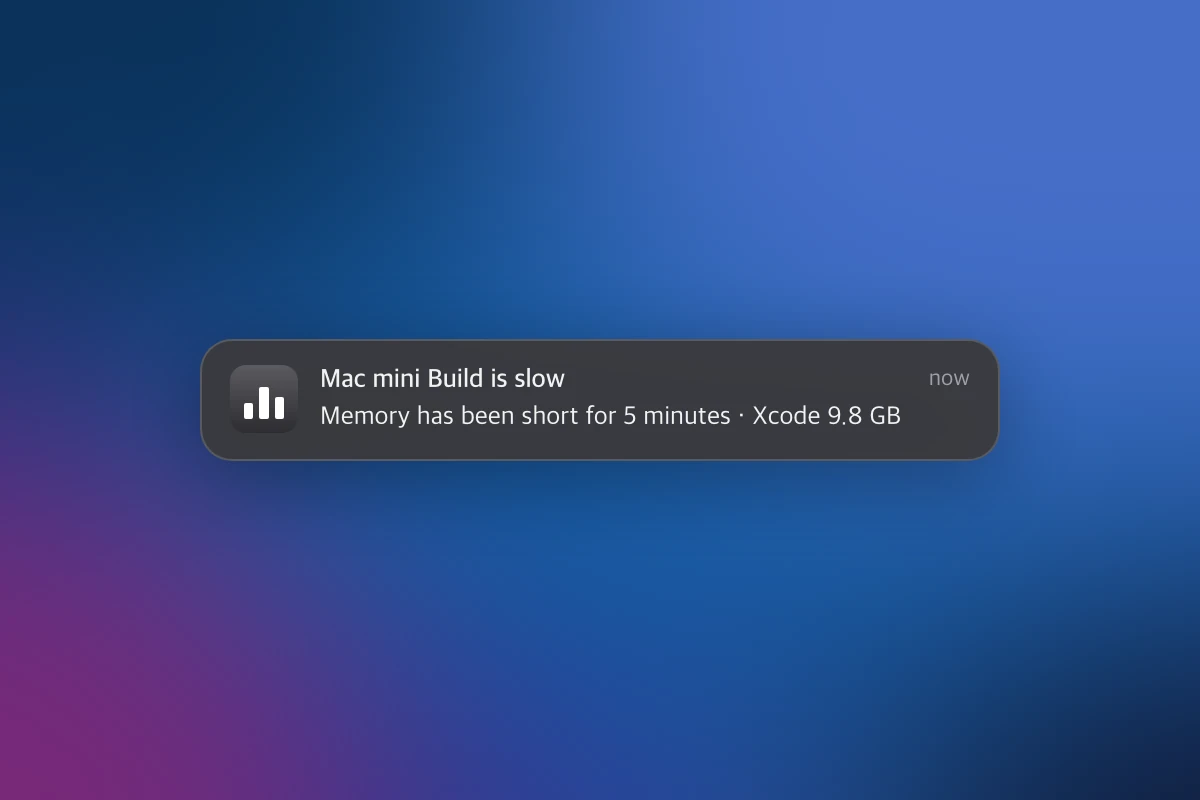
When a Mac you're away from slows down or fills its disk, the one in front of you tells you.
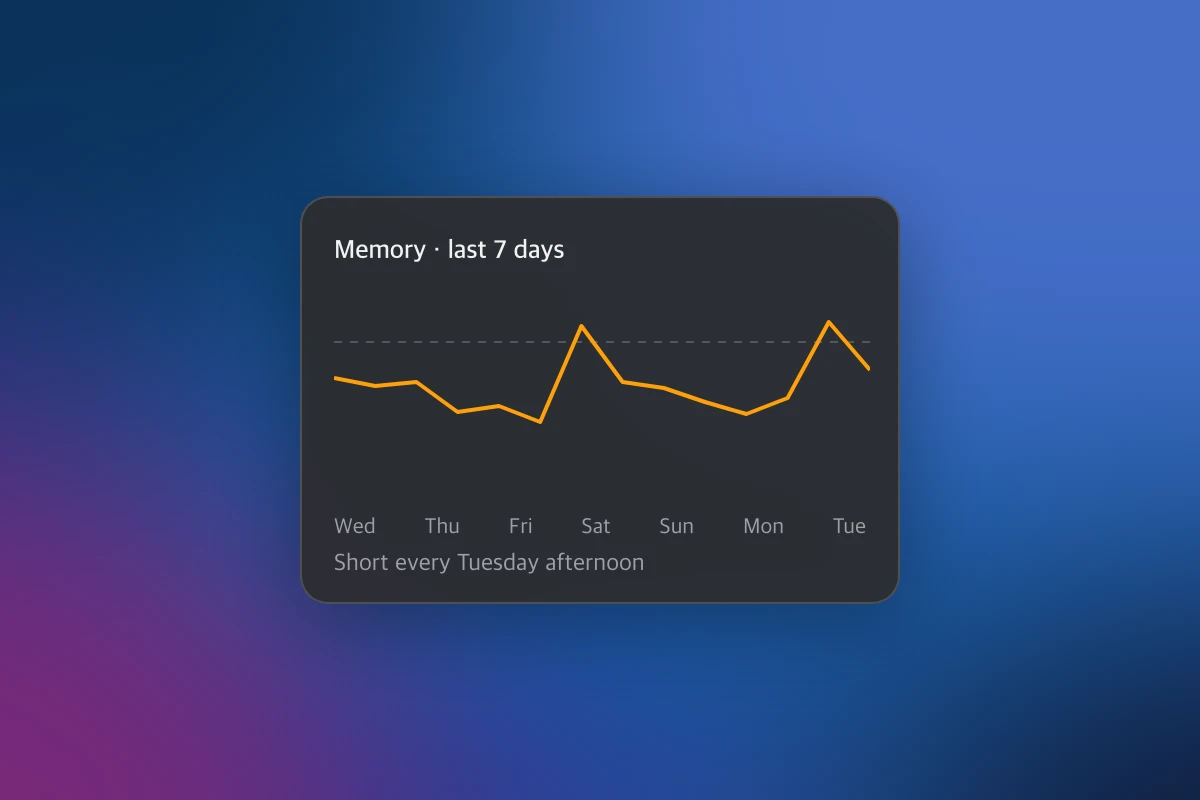
Days of history show when things slowed down, so you know whether more memory would help.
Runs on Apple silicon and Intel Macs with macOS 12 or later. The dmg for each chip is on GitHub Releases.
Open the dmg and drag Monitor to Applications.
Monitor doesn't appear in the Dock; it lives in the menu bar. When you see three bars there, it's running.
Click the three bars to open the panel. From now on it starts by itself when you log in.
Paste all three lines into Terminal. Recent Homebrew asks once before using a repository outside its official list, so the second line is there. It picks the right build for your chip.
brew tap runners-im/tap
brew trust runners-im/tap
brew install --cask monitorCPU, memory and disk use, the names of running processes, the app in front, and the size of folders you could empty. It never reads what is inside windows, files or processes.
No ads, no usage stats. If Tailscale is on, only usage numbers and the names of the heaviest apps go directly to your other computers on the same network. Only when you sign in to connect the phone app do the same numbers go through the RUNNERS server to the phone on the same account.
The GitHub releases page for update checks (a minute after launch, once a day and after waking from sleep), other computers on the same network when Tailscale is on (port 7788), and the RUNNERS server (server.system.runners.im) only when you sign in.
$0
Free, and it stays free
$1/ month
or $6 / year (50% off)
We're getting payments and RUNNERS accounts ready. Once they open, you can start Pro right here.
No. Everything that is free today stays free. Pro only adds new features that don't exist yet.
It isn't on sale yet. We're getting RUNNERS accounts and payments ready; once they open, you can start right from the pricing section on this page. Each app costs $1 a month or $6 a year.
Download the dmg and drag Monitor to Applications, or paste brew install --cask runners-im/tap/monitor into Terminal. Open it once and three bars appear in the menu bar.
In Apple menu › About This Mac, an "Apple M…" chip takes the arm64 file and Intel takes x64. Homebrew picks for you. It needs macOS 12 Monterey or later.
Monitor doesn't appear in the Dock; it lives in the menu bar. Click the three bars at the top right of your screen. Opening it again opens the panel of the Monitor that's already running.
Just looking needs no permission. Only the first time you press Quit does macOS ask whether Monitor may control that app. It needs this to ask the app to quit, so click Allow.
No. Quit works like ⌘Q, so if a document is unsaved the app asks first. Development servers are ended right away, but nothing is force-quit. Terminals, editors, system processes, claude sessions, build tools and simulators have no Quit button.
Only when you press Empty in the disk row. It asks first, then deletes right away without the Trash. Caches lose only their contents; build folders and node_modules used in the last 7 days are kept. It can also empty the Trash, unused Docker images, shut-down simulators and wallpaper videos, plus lima virtual machines and ollama models unused for over 30 days; anything in use is kept.
On first launch Monitor spends a few minutes going through folders to measure the ones you could empty. It runs at low priority so other apps don't slow down, and after that measures again every 6 hours (every 30 minutes when the disk is over 85% full). It holds off measuring while memory is short.
The menu bar icon and the memory number turn green, orange or red. When memory has been short for over a minute or the CPU has been over 80% busy for a whole minute, you get one alert a day per reason, and clicking the alert opens the panel. Quit in the alert can also close the biggest app right away. The panel never opens by itself.
macOS fills spare memory with cache and frees it when needed. So Monitor changes color based on memory pressure and on whether the CPU has been busy for a whole minute, not on the usage number. Very high memory pressure turns it red.
Those rows just don't appear, and everything else works as usual.
If you don't sign in, nothing goes to Runners or anywhere else, and there are no ads or usage stats. It goes online for three things. ① A minute after launch, once a day and after waking from sleep, it checks the GitHub releases page for a new version (GitHub sees your IP address as with any download). ② If Tailscale is on, your own computers on the same network swap usage numbers and the names of the heaviest apps directly, with no server in between. Other computers can only look. ③ Only when you sign in to a RUNNERS account to connect the phone app do the same numbers go through the RUNNERS server to the phone on the same account. See the Privacy Policy for details.
Once a day (and after waking from sleep) it checks for a new version and downloads it first, then shows what's new and asks before installing. Press Later and it won't ask again that day. Turn off Check for Updates Automatically in the panel to stop checking, or use Check for Updates… to check right away.
Yes. After you open it once, it starts at every login. Turn off Open at Login at the bottom of the panel to stop that.
If you used Homebrew, brew uninstall --zap --cask monitor also removes its settings. Otherwise choose Quit Monitor in the panel, then move Monitor from Applications to the Trash. Leftover data is in ~/Library/Application Support/Monitor.
Choose Help & Feedback in the panel to open the GitHub issues page, and leave a note there.
All installers (GitHub Releases)
Free · macOS 12 or later · Apple silicon · Intel · 20 languages