


Prompt
A terminal that runs many Claude sessions in one window, grouped by project

Split
Snap windows to halves, thirds and corners with one shortcut
All installers (GitHub Releases)
Free · macOS 13 or later · Apple silicon · Intel · 20 languages · View on GitHub
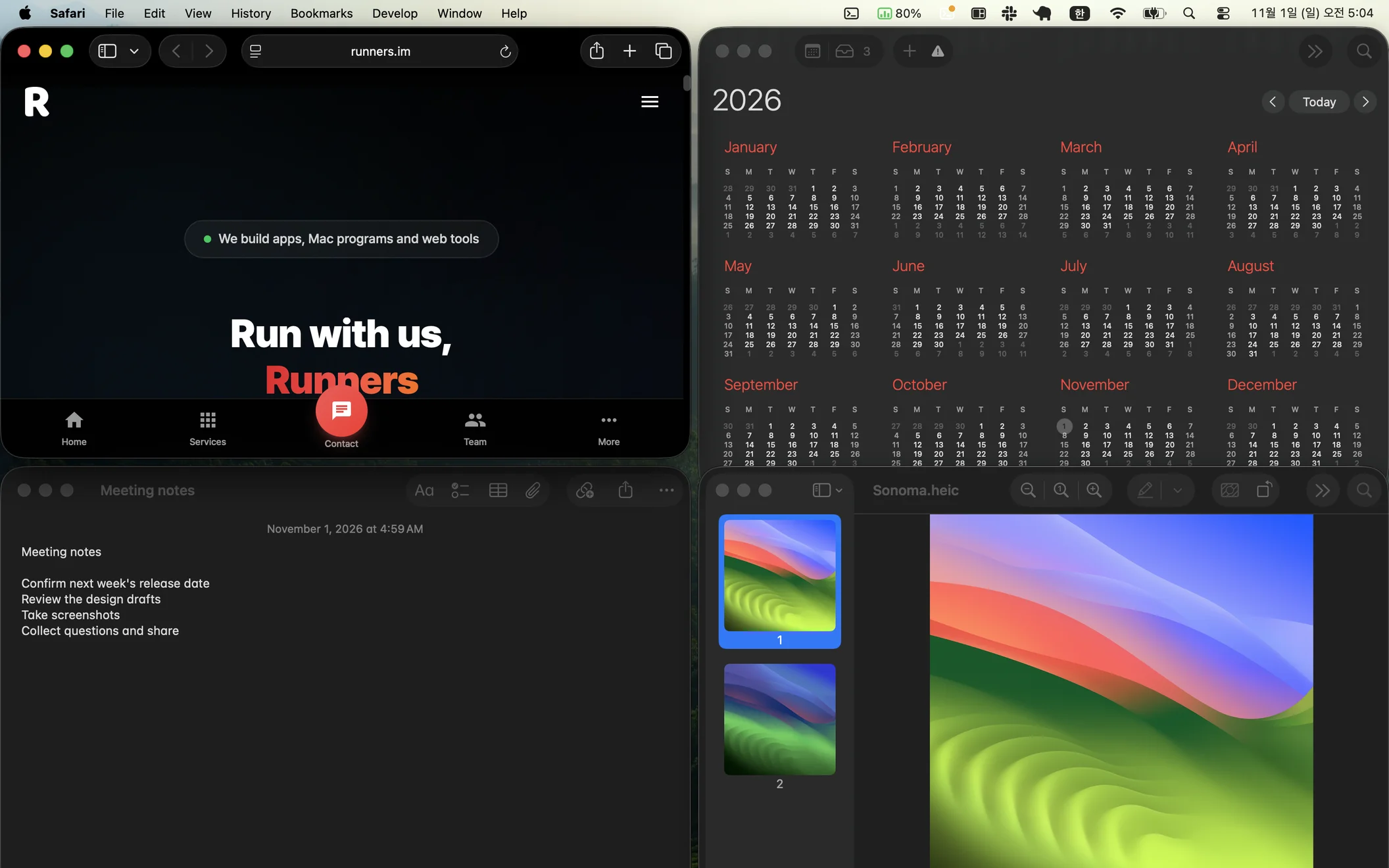 The whole screen: one ⌥⌘A puts four windows (Safari, Calendar, Notes and Preview) into a 2 × 2 grid
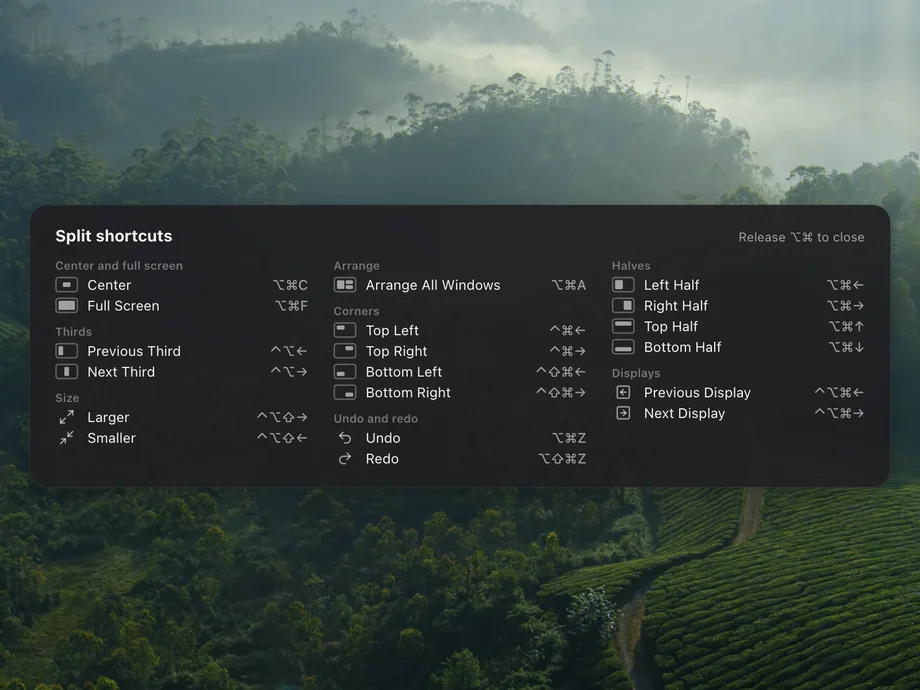
Halves, corners, thirds and the next display are each one shortcut away. Press the same key again to cycle 1/2 → 3/4 → 1/4, and hold ⌥⌘ for a second to see every shortcut.
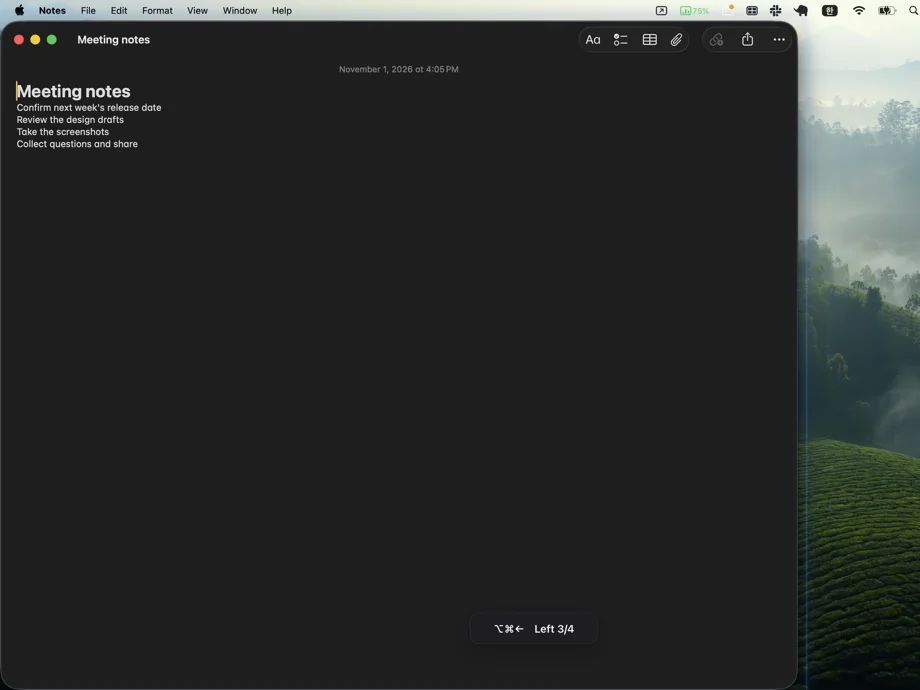 Pressing ⌥⌘← again and again resizes the window to 1/2 → 3/4 → 1/4 of the screen
⌥⌘A arranges the windows on the display with the front window to fit how many there are. You can also pick a display and a shape in the menu's Layout section. One ⌥⌘Z puts every window back.
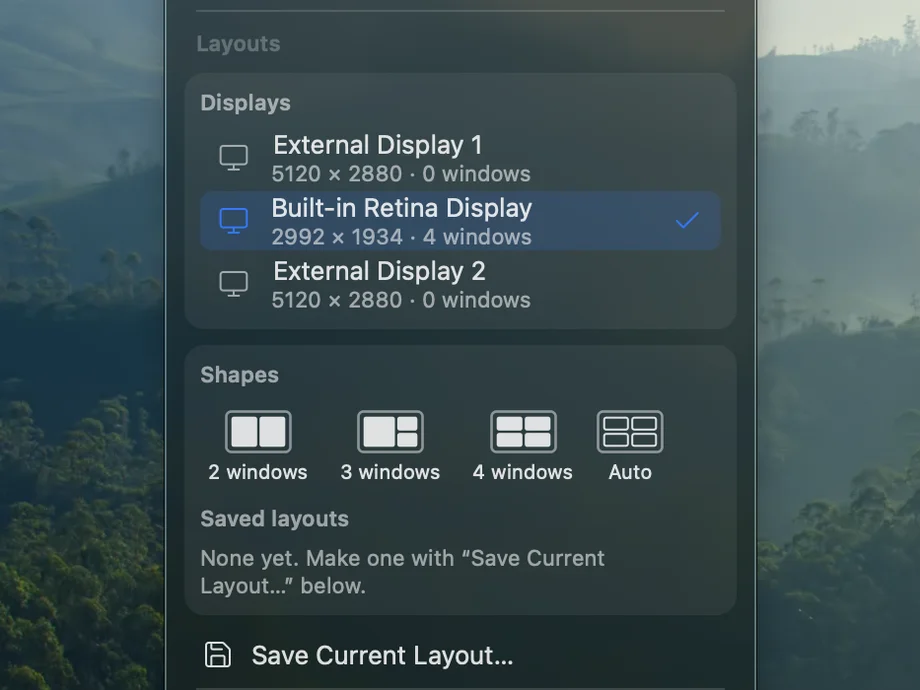
When you unplug a display, its windows move to the screens that are left. Plug it back in and they return. A display Split hasn't seen before gets an automatic layout.
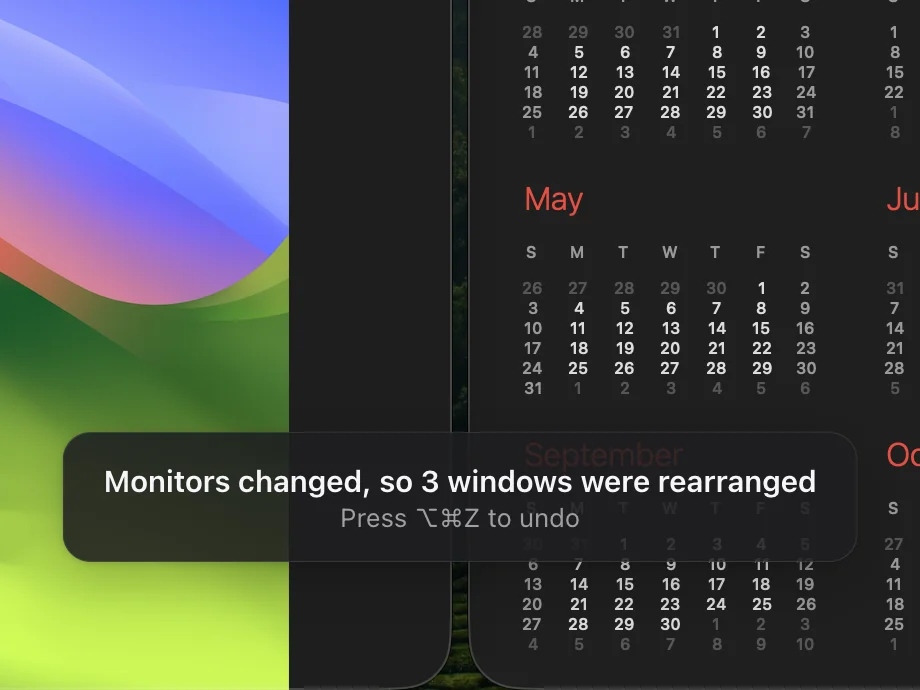
Save every window's place across all displays under a name. Split can load it automatically when the same displays connect. Free for everyone.
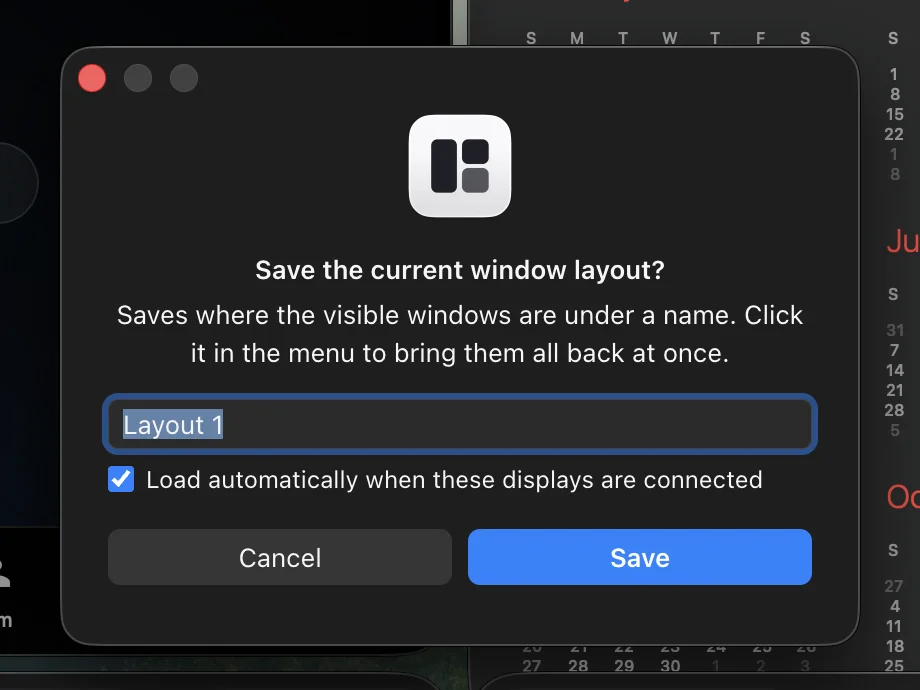
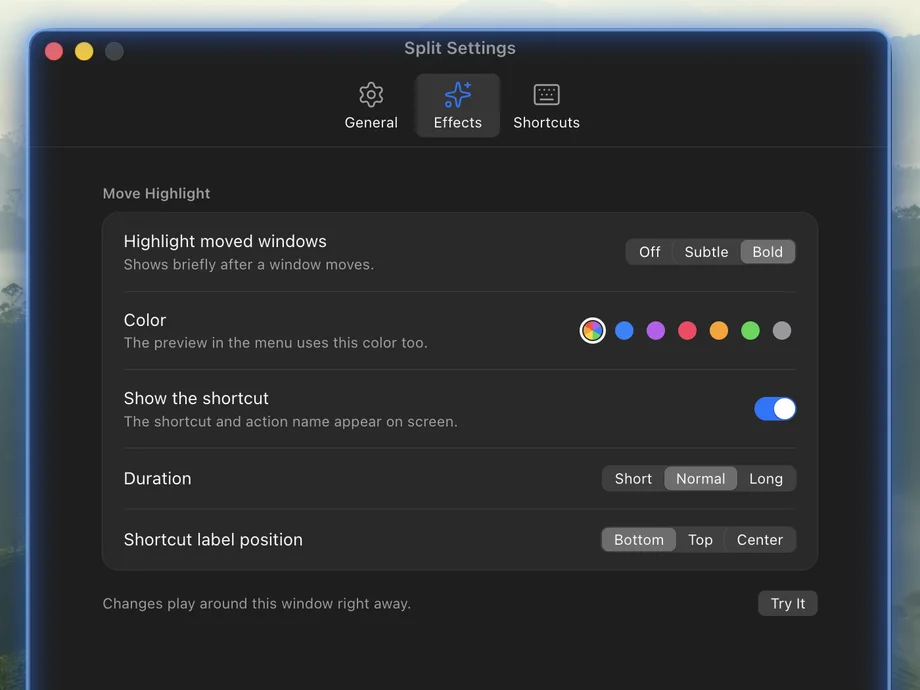
The moved window glows briefly and the shortcut you pressed appears on screen. Change strength, color and duration in Settings › Effects, or turn them off.
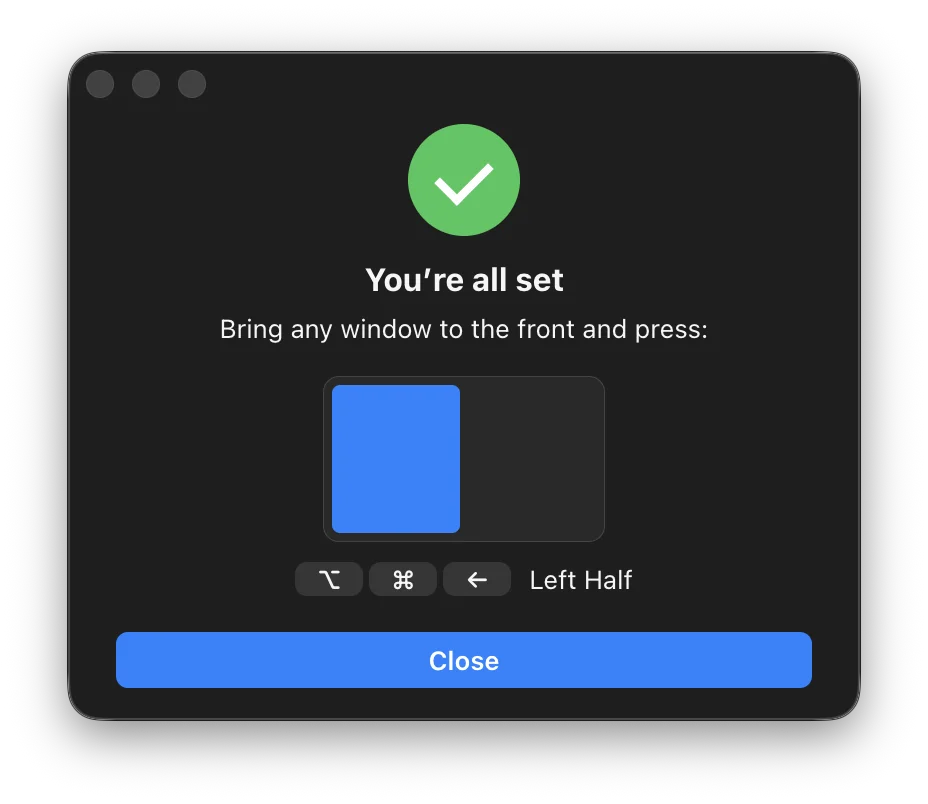
On first launch Split opens the Accessibility page in System Settings. Turn on the switch next to Split and the guide changes to "You're all set" and shows the first shortcut to try. If it still doesn't work, click "It's on but not working" in the guide. Windows and Linux skip this step.
These are the keys after a fresh install. Change any of them in Settings › Shortcuts. On Windows press Win instead of ⌘, Alt instead of ⌥ and Ctrl instead of ⌃; on Linux press Super instead of ⌘.
Center · Full screen
Auto arrange
Halves
Corners
Thirds
Displays
Size
Undo · Redo
Press a half or corner shortcut again to cycle 1/2 → 3/4 → 1/4. Press Full Screen again to go back to the previous size.
On the display with the front window, up to nine windows, frontmost first:
1
Full screen
2
Left half · right half
3
Left half + right top and bottom
4
Four tiles
5
Four tiles + the front window floating at 60% in the center
6
Six tiles (3 × 2)
7–9
Six tiles + the rest stacked in the center, offset 30 points each
Minimized, full-screen and hidden windows, and windows on other desktops, are left alone. One ⌥⌘Z puts every window back.
Runs on macOS 13 or later (Apple silicon and Intel), 64-bit Windows, and Linux in an X11 session.
Open the dmg and drag Split to Applications. It's notarized by Apple, so you won't see an "unidentified developer" warning.
On first launch System Settings opens by itself. Turn on the switch next to Split in the list, and the guide changes to show the first shortcut to try.
The Split icon appears in the menu bar. Press ⌥⌘← to send the current window to the left half.
Paste all three lines into Terminal. Recent Homebrew asks once before using a repository outside its official list, so the second line is there.
brew tap runners-im/tap
brew trust runners-im/tap
brew install --cask splitThe position and size of other apps' windows, through macOS Accessibility, so it can move them. Saved layouts write app names, window titles and positions to a file on this Mac only.
Nothing unless you sign in on the Phone tab. Once you do, it sends the computer name, display info and the names of saved layouts to the RUNNERS server so the phone app can recognize this computer. No ads, no usage stats.
It reads the update list on GitHub (once a day, can be turned off). Only when you sign in on the Phone tab does it connect to the RUNNERS server (server.system.runners.im).
$0
Free, and it stays free
$1/ month
or $6 / year (50% off)
We're still deciding which new features Pro will add.
We're getting payments and RUNNERS accounts ready. Once they open, you can start Pro right here.
No. Everything that is free today stays free. Pro only adds new features that don't exist yet.
It isn't on sale yet. We're getting RUNNERS accounts and payments ready; once they open, you can start right from the pricing section on this page. Each app costs $1 a month or $6 a year.
Download the dmg from this page and drag Split to Applications. With Homebrew, paste the three lines from the install section into Terminal.
Recent Homebrew asks once before using a repository outside its official list. Run brew trust runners-im/tap, then install again.
Yes. One app runs natively on both chips. It needs macOS 13 Ventura or later.
On macOS, apps can only move other apps' windows with this permission. Turn Split on under System Settings › Privacy & Security › Accessibility. Windows and Linux have no such permission.
An old permission entry left over from an update can get in the way. Click "It's on but not working" in the permission guide; Split registers itself again and opens Settings. Turn the switch back on there.
Change it in Settings › Shortcuts, or press × to clear it. To pause shortcuts for a while, use Pause Shortcuts in the menu for an hour or while that app is in front.
On a Mac, shortcuts turn off by themselves while Photoshop or Steam is in front. If they don't work in another app, check the status line at the top of the menu to see why they're off.
Both react to the same shortcuts, so use just one. If Spectacle is running (even if it starts later), Split asks whether to quit it, and quitting also removes it from your login items. If Rectangle or Magnet is running, the Settings window warns that shortcuts may clash.
macOS 15 added built-in halves and quarters. Split adds thirds, size cycling with the same key, auto-arrange for up to nine windows and re-placing windows when displays change, and every shortcut can be changed.
Its windows move to the remaining screens and return when you plug it back in. You can turn this off in Settings.
Once a day Split checks for a new version and downloads it ahead of time, then shows what's new and asks before installing. Use Check for Updates… in the menu to check right away, or turn off the Check for Updates Automatically switch. If you installed with Homebrew, brew upgrade --cask split works too.
Yes, it's on from the start. To stop it, turn off the Open at Login switch in the menu or in Settings. If you hid the menu bar icon, open Split again to get back to the Settings window.
Nothing by default. Split only goes online to check for updates. Only if you sign in to a RUNNERS account on the Phone tab in Settings does it send the computer name, display info and the names of saved layouts to the RUNNERS server, so it can connect to the phone app. Saved layouts write app names, window titles and positions to a file on this computer only.
If you used Homebrew, brew uninstall --zap --cask split also removes its settings. If you downloaded it yourself, move Split from Applications to the Trash and delete the ~/Library/Application Support/Split folder too. On Windows, remove Split in Settings › Apps, then delete the %APPDATA%\Split folder; on Linux, delete the ~/.config/Split folder.
Choose Help & Feedback in the menu to open the GitHub issues page, and leave a note there.
All installers (GitHub Releases)
Free · macOS 13 or later · Apple silicon · Intel · 20 languages
A terminal that runs many Claude sessions in one window, grouped by project

See who is using your CPU, memory and disk, then quit or clean up right there.

See the screens of other computers in your office one monitor at a time, and click and type on the ones that allow it, right from where you sit.